
How to Install Python and Set Up VS Code for Beginners
etting up your programming environment can feel overwhelming when starting your coding journey. Python is one of the most versatile programming languages in the world, and Visual Studio Code (VS Code) is widely considered the best lightweight code editor available. Knowing how to install Python and set up VS Code correctly from day one will save you hours of debugging setup errors later.
This step-by-step guide walks you through downloading, installing, and configuring both tools so you can run your first Python program smoothly.
Key Takeaways
- Installing Python with the “Add Python to PATH” option checked prevents environment variable errors.
- VS Code requires the official Python Extension by Microsoft to enable IntelliSense and debugging features.
- Running Python scripts in VS Code requires selecting the correct Python Interpreter.
- Verifying installations through the terminal confirms everything is connected properly.
Step 1: Downloading and Installing Python
Before setting up your code editor, Python must be installed on your operating system.
How to Download Python
- Visit the official website: [External Link: Official Python Downloads Page with anchor text “Python downloads page”].
- Click the button to download the latest stable version for your operating system (Windows or macOS).
Installing Python on Windows
- Locate the downloaded
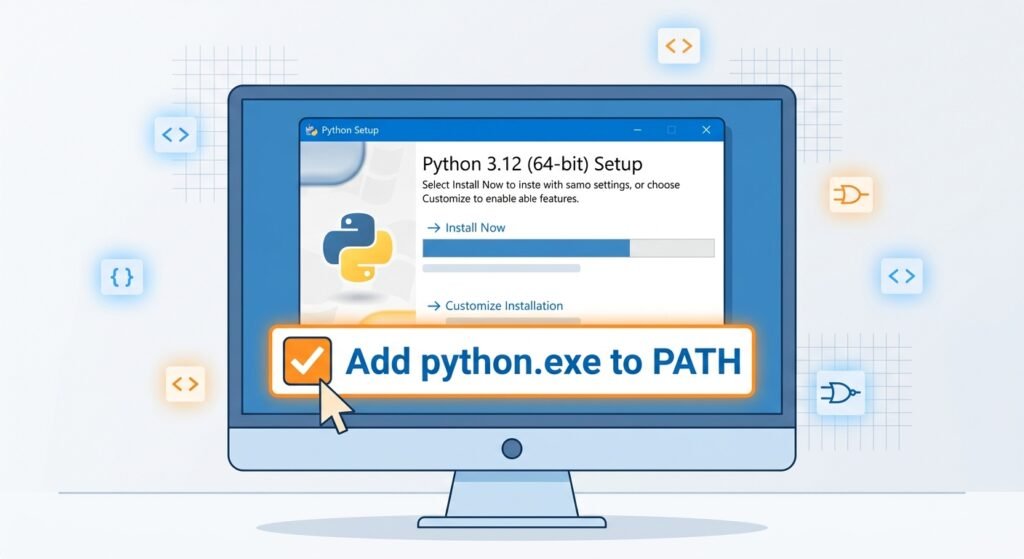
.exefile and run it. - Crucial Step: At the bottom of the installer window, check the box that says “Add python.exe to PATH”. Skipping this will prevent VS Code from detecting Python automatically.
- Click Install Now and wait for the process to complete.
Installing Python on macOS
- Open the downloaded
.pkgfile and follow the wizard. - Complete the installation steps. MacOS users may also need to run the
Install Certificates.commandfile located inside the Python application folder to ensure secure network requests work properly.
Step 2: Downloading and Installing Visual Studio Code
Visual Studio Code is a powerful source code editor that supports multiple languages through extensions.
- Navigate to the official VS Code download page.
- Select the installer corresponding to your operating system (Windows, macOS, or Linux).
- Run the installer and keep the default settings checked during setup.
Step 3: Configuring VS Code for Python Development
Once both software packages are installed, you need to connect VS Code to your Python installation.
Installing the Python Extension
- Open Visual Studio Code.
- Click on the Extensions icon on the left sidebar (or press
Ctrl+Shift+X/Cmd+Shift+X). - In the search bar, type
Python. - Locate the extension published by Microsoft and click Install.
Selecting the Python Interpreter
- Press
Ctrl+Shift+P(Windows) orCmd+Shift+P(macOS) to open the Command Palette. - Type
Python: Select Interpreterand pressEnter. - Choose the Python version you installed in Step 1 from the list.
Step 4: Writing and Running Your First Python Script
Now that your development environment is fully configured, it is time to write and execute code.
Creating a New Project Folder
- Create a folder on your desktop named
python-projects. - In VS Code, go to File > Open Folder and select
python-projects.
Creating a Python File
- Click the New File icon in the VS Code explorer.
- Name the file
hello.py(the.pyextension tells VS Code this is a Python script).
Running Your Code
Add the following code to hello.py:
Python
print("Hello, World! Python is working in VS Code.")
Click the Play button ($\triangleright$) in the top-right corner of VS Code, or open the integrated terminal (Ctrl + ~) and type:
Bash
python hello.py
If set up correctly, your terminal will display the output message immediately.
Troubleshooting Common Setup Issues
- “Python is not recognized” Error: This happens when Python was installed without checking the “Add to PATH” box. Re-run the installer, choose Modify, and check the PATH box.
- Interpreter Not Found: Ensure you installed the Python Extension in VS Code and manually selected the interpreter through the Command Palette.
To learn more about programming basics, explore our guide on [Internal Link: Insert link to Python Variables and Data Types tutorial here with anchor text “Python variables and data types”].
Frequently Asked Questions
Why do I need to add Python to PATH?
Adding Python to PATH allows your operating system and code editors like VS Code to find and execute the Python executable from any command line location.
Is VS Code completely free for Python development?
Yes, Visual Studio Code is 100% free, open-source, and supported across Windows, macOS, and Linux.
How do I check if Python is installed correctly?
Open your terminal or command prompt and type python --version. If installed properly, it will return your installed Python version number.